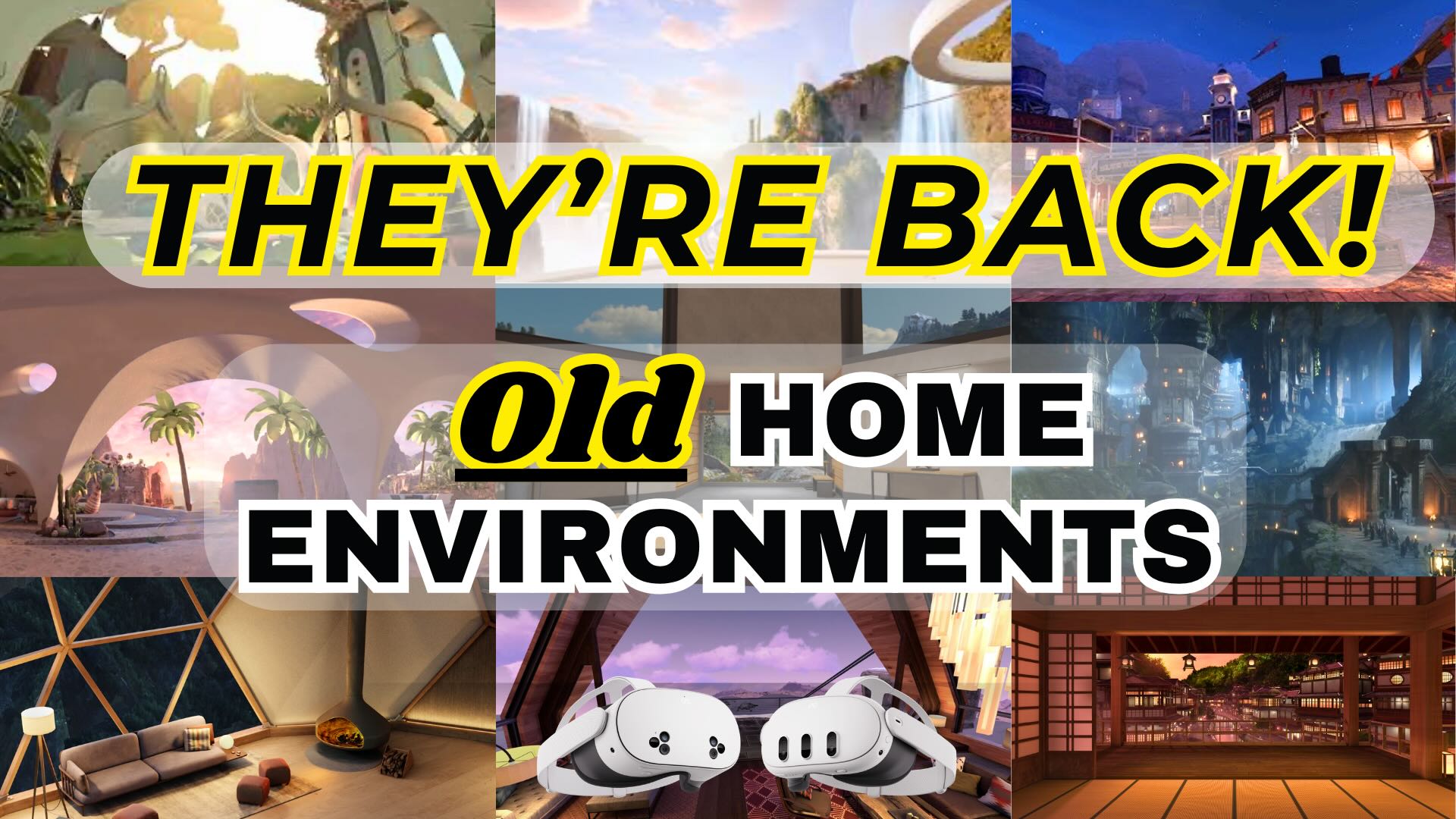
I’ve heard a lot of users upset at the new update and how the virtual environments that we all knew and loved were taken away. However, there is still a backdoor way to access the old ones if you would like.
Check out my step-by-step instructions below on how to access the old virtual environments on your Meta Quest 3 and 3s.
If you’d like the step by step in words, this should do it for you:
- Go to Settings
- Go to “Help” at the bottom
- Go to “Help and Tips App”
- Go to “Tutorials” at the bottom
- Scroll down and click on “Change Your Virtual Environment”
- Click “Go to settings”
You should then see in your Settings window all of the old Virtual Environments.
Here are a few things that I noticed though. If you power off or restart your Quest, when you turn it back on it will default back to the “Scenery” option that it was on before. I also noticed that the Skybox feature wasn’t working. So some of the environments did look a little weird in some parts.
I don’t know how long this backdoor entry will stay open, but for now, this is a way to access the old virtual environments after the V81 update on your Meta Quest 3 and 3s.
If you want to learn how to change the scenery options as well, just watch the video above as I go through that or check out my dedicated video.
Check out all of my Meta Quest Tips here!