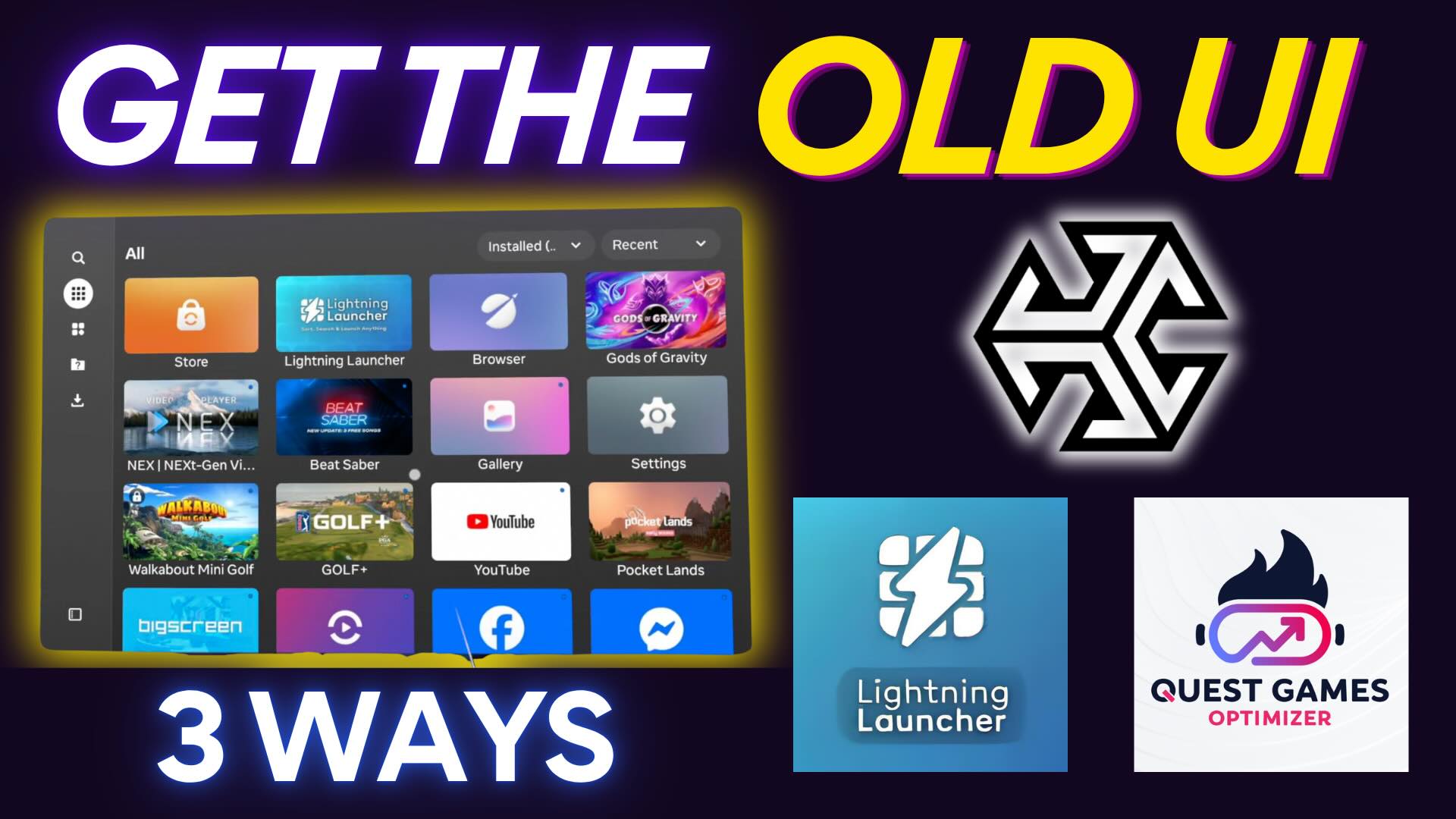
Here are some essential tips for using the new Meta Quest UI. The latest update to the Meta Quest interface changes how you navigate apps, manage windows, and customize your VR experience. If the new layout feels unfamiliar, this guide will walk you through the most important features so you can feel comfortable using your headset.
Whether you’re brand new to VR or just adjusting to the latest software update, this tutorial covers everything from navigating your library to multitasking like a pro.
I was thinking of doing a section for each timestamp but it is much easier by showing it in the video. Below is a full list of timestamps so you can jump to the exact section you need:
Video Timestamps
- 0:24 — Quick Overview of the New UI
- 1:22 — Switch Between Passthrough and Virtual Environment
- 1:38 — Library Navigation
- 2:15 — How to Pin Apps in the Library
- 2:36 — How to Hide Apps
- 2:58 — Left-Hand Menu Options & Sorting
- 3:20 — How to Find Unknown Sources
- 3:41 — Screen Recording and Screenshots (New Camera App)
- 5:09 — How to Quit Apps
- 5:57 — How to Delete Apps
- 6:41 — Windows vs Apps Explained
- 7:45 — How to Anchor Windows
- 8:31 — How to Close Windows
- 9:08 — How to Hide Windows Without Closing Them
- 9:30 — How to Cast Your Headset
- 9:48 — How to Listen to Music While Gaming
- 11:00 — Closing Thoughts
Whether you’re brand new to VR or just adjusting to the latest software update, these tips will help you get more comfortable and make the most of your headset.
Please don’t hesitate to reach out if you have more questions. I’m here to help!